
Audience
Manage your audience on the Audience page (formerly Subscribers): add and import subscribers, collect optional WhatsApp numbers, read the Journey column and timeline (Showed interest, Engaged, New, Quiet, Booked a call), tag with colours, custom fields and the Fields menu, segments and smart segments (Showed Interest and more), source filters, Cleanup and Quarantine, export, statuses, and double opt-in.
Your audience
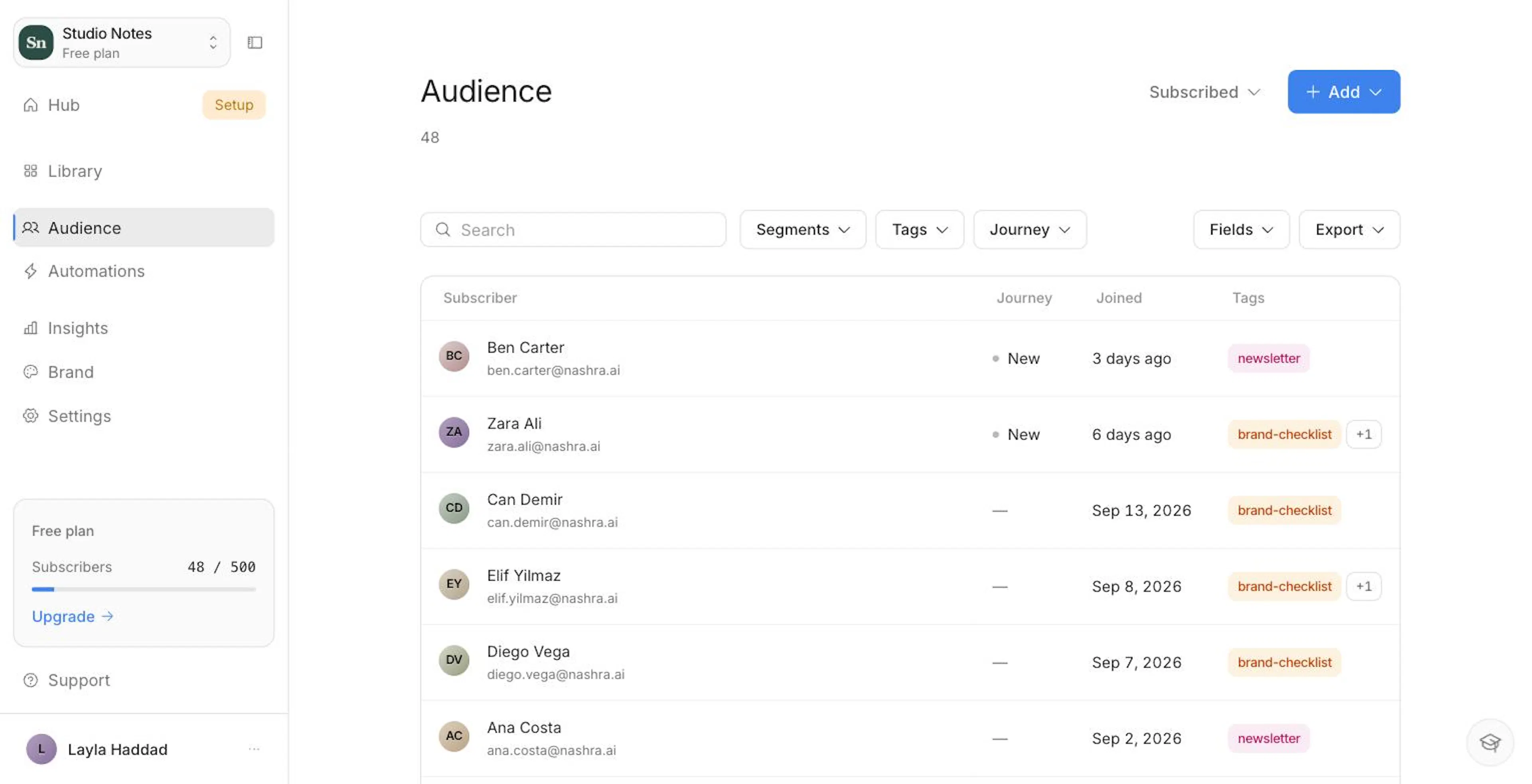
The Audience page in the sidebar (it used to be called Subscribers) is where everyone who signed up lives: who they are, how they found you, what they've engaged with, and how they're tagged.
The list opens on Subscribed people. The switcher beside Add changes the view to All, Unsubscribed, Unconfirmed, or Quarantined, with a count next to each. When people are waiting to confirm their signup, a link under the page title reads "N awaiting confirmation". Click it to see them.
The table has four columns by default: Subscriber, Journey, Joined, and Tags. The WhatsApp column and any custom fields are hidden until you turn them on in the Fields menu.
Adding subscribers
Add one person
Click Add → Add Single Person. Enter an email (required) and, optionally, a first and last name, a WhatsApp number, tags, custom field values, and notes.
People you add by hand or import join as Subscribed straight away. Double opt-in only applies to people who sign up themselves.
Import from a file
Moving from another platform? Migrating to Nashra covers bringing your posts across as well as your subscribers.
Open the importer
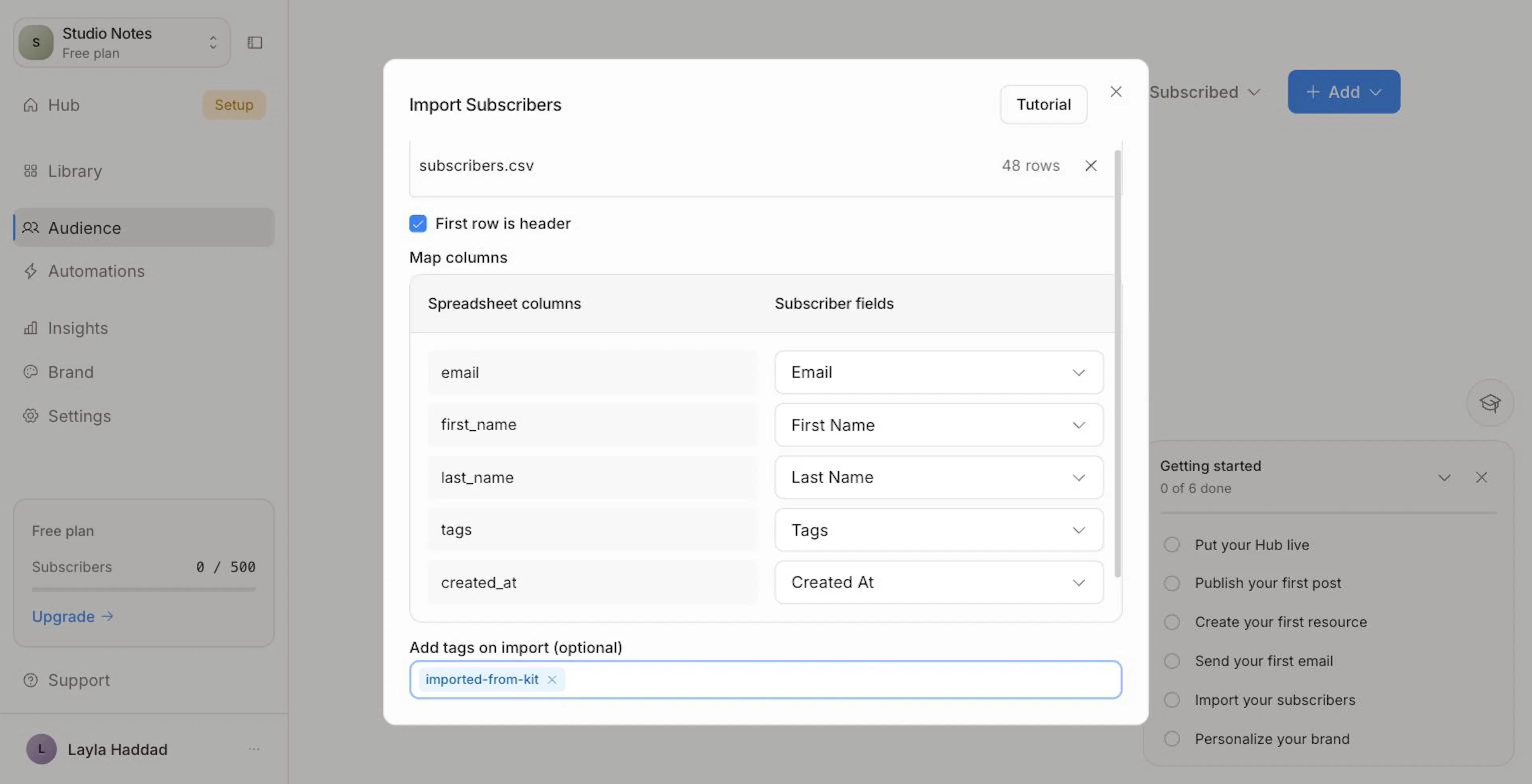
Click Add → Import from CSV.
Upload your file
Drop in a CSV, XLS, or XLSX file of up to 10 MB. It needs at least an email column.
Map your columns
Nashra matches your columns automatically. Check each one and point it at Email, First Name, Last Name, WhatsApp number, Tags, Unsubscribed, Created At, Updated At, or one of your custom fields. Pick Don't import to skip a column. A column with no matching field can become one right there: choose Create new custom field.
Add tags (optional)
Tag everyone in this import (for example imported-from-mailchimp) so you can find them later.
Start the import
The import runs in the background while you keep working. A progress bar shows how far it's got, and Cancel stops the rest without undoing what's already in. When it finishes, a banner shows how many people came in and how many rows were skipped for missing or invalid data.
Duplicates are handled for you. Someone already on your list is updated, not added twice. For WhatsApp numbers, include the country code (+966…). A number Nashra can't read is left blank rather than stored wrong.
Only import people who gave you permission to email them. Importing cold lists harms your sender reputation and can get your sending blocked.
Other ways people join
Most of your audience arrives on its own. People join through a Resource, your Hub's subscribe form, a landing page's Signup or Booking section, the Subscribe form block in a post, an HTML form on your own site, or the API. Each signup records where it came from. You'll see it on the person's profile and in their Journey.
WhatsApp numbers
Every subscriber has a built-in WhatsApp number field alongside their name and email. It's always optional.
- Collecting it. No form asks for a number until you turn it on. Look for Ask for WhatsApp number on a landing page's Signup section, the Hub's subscribe form (the pencil beside its button), and a post's Subscribe form block. On a Resource, add the WhatsApp field to the form's fields. Readers see "Your WhatsApp number (optional)" and can leave it blank and still subscribe.
- Seeing it. Turn on the WhatsApp column from the Fields menu. Numbers are stored in international format and shown left-to-right, even in an Arabic dashboard.
- Finding someone by number. Search matches the digits, so a number pasted with spaces, dashes, or brackets still finds its owner. Search with the country code included.
- Editing it. Change it on the subscriber's profile, map it on import, and find it in every CSV export.
Nashra stores the number for you. It doesn't message it. The API doesn't read or return the WhatsApp number yet either.
Journey
The Journey column
The Journey column puts one plain word on each person, based on their strongest recent signal:
| State | Who gets it |
|---|---|
| Showed interest | Clicked an offer link in one of your emails, or booked a call through your page, in the last 90 days |
| Engaged | Opened or clicked one of your emails in the last 30 days |
| New | Joined in the last 7 days and hasn't done anything yet. Too early to judge |
| Quiet | On your list for 90+ days, has received email, and hasn't opened or clicked in 90 days |
The strongest state wins, top to bottom. Most rows show a dash, and that's on purpose: if everyone wore a badge, no badge would mean anything.
Use the Journey filter in the toolbar to turn the table into a worklist. One click on Showed interest shows the people most likely to want to work with you.
What counts as an offer link
An offer link is a link to a booking page, checkout, or paid product on a tool Nashra recognises:
- Booking: Calendly, Cal.com, SavvyCal, Topmate
- Products and checkouts: Gumroad, Stan Store, Lemon Squeezy, Stripe payment links and checkout, Payhip, Podia
- Courses and communities: Teachable, Kajabi, Maven, Skool
- Support and memberships: Patreon, Buy Me a Coffee, Ko-fi, PayPal.me
- Direct contact: WhatsApp chat links (
wa.me)
Links to anything else count as ordinary clicks. They still make someone Engaged, but not Showed interest.
The Journey timeline
Open any subscriber and switch to the Journey tab for their whole story with you, newest first:
- Joining the list, and the page, form, Resource, or Hub they subscribed through
- Each email you sent them, when they opened it, and which links they clicked (with the address)
- Activity on your public site: visiting the Hub or a page, reading a post, following a link on the Hub, unlocking a Resource, searching, and Booked a call when they book through a landing page's Booking section
- Unsubscribing, if they did
A booking also marks the person Showed interest. Nashra can only see a completed booking when the scheduler is Calendly. People who book through Cal.com or SavvyCal still join your audience, but the booking itself isn't recorded. See Forms, Booking & Automation Tools.
When there's enough site activity, an Interests row sits above the timeline. It shows the topics this person keeps coming back to, with a count for each, from the last 90 days.
Site activity is only recorded for visitors who agree to it on your public site. It joins their profile when they subscribe or click through from one of your emails. Anonymous activity that never gets linked to a subscriber is deleted after 90 days.
Subscriber profile
Click any row to open the person's profile. The header shows their name, email, when they joined, their open rate, the source they signed up through, and a Showed interest badge when it applies. Three tabs sit below:
- Details. Edit their email, name, WhatsApp number, tags, and notes, fill in custom fields, and see which segments they're in. Click Save changes when you're done.
- Activity. Open rate, click rate, how many emails they've been sent, opened, and clicked, and their recent emails.
- Journey. The full timeline described above.
Tags
Tags are labels you attach to subscribers to organise them by source, interest, or behavior. Each subscriber can have any number of tags.
Common tags: instagram, website, customer, free-trial, vip, webinar-attendee
You can apply tags:
- When adding or importing subscribers, or on someone's profile
- In bulk: select rows, then click Tag in the action bar
- Automatically, with Tag on signup on a landing page's Signup or Booking section, Auto-tag submissions on an HTML form, or a Resource's tags
- Through Automations, as subscribers move through a workflow
Manage tags from the Tags menu in the toolbar. New tag creates one. You can also rename a tag, change its colour, or delete it. Tag names must be unique. If one already exists, Nashra tells you instead of creating a duplicate.
Every tag has a colour, picked from eight: Cyan, Orange, Yellow, Green, Blue, Purple, Pink, and Red. There's no grey. A tag you never coloured gets one worked out from its name, so it looks the same everywhere.
Renaming a tag carries the new name into every automation that uses it: triggers, conditions, and add/remove-tag steps. Deleting a tag that an automation still uses is refused, and Nashra names the automations to update first. That way an automation never stops firing without telling you.
Turn a tag into a segment
When you create a tag from the tag picker, turn on Also create a segment. Nashra builds a matching segment in the same step, holding everyone with that tag. Create a tag from the Tags menu instead and the confirmation offers Create segment for the same shortcut. It's the fastest way to go from "label these people" to "send to these people".
Tagging strategies
| Strategy | Example tags | Why it helps |
|---|---|---|
| By signup source | instagram, website, webinar, referral | Know where your audience comes from |
| By interest | design, development, marketing | Send content people actually care about |
| By customer stage | lead, free-trial, customer, churned | Tailor messaging to where someone is |
| By product | product-a, product-b, enterprise | Target updates to the right users |
Lowercase with hyphens (free-trial) keeps things tidy as your list grows. Pick a convention and stick with it.
Custom fields
Custom fields store extra subscriber data: country, company, plan, role, anything you want. Field types: Text, Number, Date, and Boolean (Checkbox).
Everything lives in the Fields menu in the toolbar:
- Show columns. Switch the built-in Journey, WhatsApp, Joined, and Tags columns on or off, and put any custom field on screen as its own column. Custom field columns start hidden, so a list with a dozen imported fields stays readable. Your choices are remembered in this browser.
- Edit a field. Click the pencil next to it to rename it, change its type, mark it Required, or delete it.
- Add a field. Click Add field.
Column order is fixed, so there's nothing to drag.
Nashra generates each field's internal key from its label, including non-Latin labels: رقم الموبايل becomes rkm_almobayl. If two labels produce the same key, or a label matches a built-in field such as "Phone" or "Email", Nashra adds _2, _3, and so on, so your field never clashes with the built-in one. Renaming a field later keeps its key, so the data already stored under it stays put.
Custom fields power:
- Segmentation. Build segments like "country is
DE" or "plan is any ofpro,team". - Automations. Branch on a field with a Conditional step, or set one with an Update fields step.
- Exports. Every field comes out in your CSV.
Segments
Segments are saved groups of subscribers based on conditions you define. Unlike tags, which you apply, segments update themselves: people enter and leave as their data and behavior change.
Tags vs. segments
| Tags | Segments | |
|---|---|---|
| How they work | Labels you attach | Filters that group by conditions |
| Updates | Manual or via automations | Automatic, always up to date |
| Best for | Source, stage, interest | Behavior, properties, combinations |
| Example | vip tag on loyal subscribers | Open rate at least 40% AND subscribed before a date |
Creating a segment
Open the Segments menu
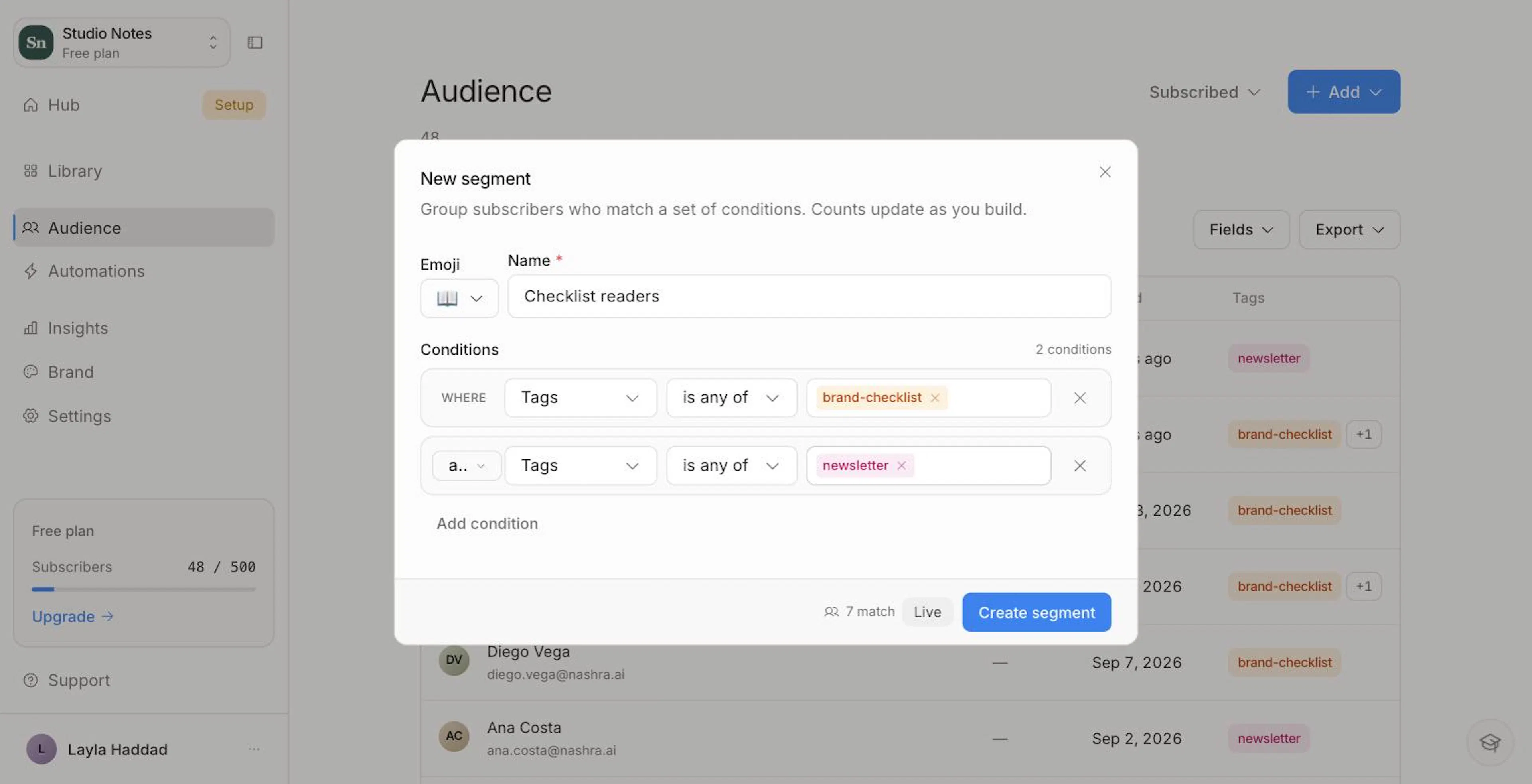
In the Audience toolbar, open Segments and click New segment.
Name it and pick an emoji
Type a name. Nashra suggests an emoji from it, and you can pick any other from Emoji. The emoji shows beside the segment everywhere it's listed.
Add conditions
Click Add condition and choose from five types: Tags, Email, Custom field, Subscribed at, and Engagement. The first condition applies on its own. Each one after it joins with and or or.
Check the count and save
A live counter reading N match updates as you build, so you know the audience size before you save. Click Create segment.
To edit or delete a segment, open Segments and use the menu on its row.
Segment conditions
| Condition type | Operators | Example |
|---|---|---|
| Tags | is any of, is none of, has all of, has none of | Tags has all of customer, vip |
| is, is not, starts with, ends with, doesn't start with, doesn't end with | Email ends with @agency.com | |
| Custom field | is, is not, is any of, is none of, is on or after, is on or before | country is any of US, CA |
| Subscribed at | is on or after, is on or before, is between | Subscribed at is on or after 2026-01-01 |
| Engagement | Last opened or Last clicked (is on or after / on or before a date); Open rate or Click rate (is at least / at most a percentage) | Open rate is at least 40% |
Engagement's Last opened and Last clicked compare against a specific date you pick. There's no relative "in the last N days" option. For a rolling window, use Open rate or Click rate, the Journey filter, or one of the smart segments below.
Smart segments
Smart segments are ready-made segments Nashra calculates for you, with no conditions to set up. Open Segments → Smart segments and pick the ones you want to add to your list. You can delete one you don't use and add it again later.
| Smart segment | Who's in it |
|---|---|
| Showed Interest | Clicked an offer link in one of your emails in the last 90 days |
| Ready to Connect | Top 10% by engagement score, among subscribers active 30+ days who've received at least 3 emails |
| Loyal Readers | Opened at least 80% of the emails they've received (minimum 6) |
| Clickers | Clicked a link in the last 30 days |
| Curious Newcomers | Subscribed 7–30 days ago and opened at least one email |
| Fresh Subscribers | Subscribed in the last 7 days |
| Slow Starters | Subscribed 14–30 days ago, received 2+ emails, opened none yet |
| Samplers | Received 10+ emails, opened only one or two, never clicked |
| Lost Connection | Subscribed 60+ days ago, received 10+ emails, and haven't opened anything in the last 90 days |
Showed Interest answers "who actually wants to work with me?" These are the leads that would otherwise slip away unnoticed. Smart segments aren't AI-generated despite the sparkle icon. They're nine fixed definitions Nashra works out the same way for every workspace.
Using segments when sending
In the send dialog, pick a segment under Audience instead of All subscribers. Nashra shows the recipient count before you send.
Automations don't start from a segment. To run a workflow for a group, give them a tag and use a Tag is added trigger. See Automations.
Filtering and search
- Search by name, email, or WhatsApp number
- Status: Subscribed, All, Unsubscribed, Unconfirmed, or Quarantined (next to Add)
- Segments: any saved or smart segment
- Tags: one or more tags
- Journey: Showed interest, Engaged, New, or Quiet
- Source: on Insights → Audience, click a source under "Where new subscribers came from" to open this list scoped to everyone who joined through it. A chip names the source. Clear it to see everyone again.
Bulk actions and exports follow whatever filters are active.
Exporting
Open Export → Export as CSV to download the list exactly as it's filtered: the current status, segment, tags, search, and Journey state. Nashra builds the file in the background and downloads it when it's ready. The export includes WhatsApp numbers and every custom field. You own your data.
Cleaning up your list
Bot signups, typo'd addresses, and subscribers who've never once engaged drag down your deliverability and inflate your subscriber count. Cleanup finds them for you.
Open Cleanup
Select any subscriber to bring up the action bar at the bottom of the list, then click Cleanup. The scan covers your whole list, not just the rows you picked.
Let the scan run
Nashra checks your list for spam signals: throwaway email domains, addresses with no working mail server, gibberish names, role addresses like info@, large bulk imports, and subscribers who've never opened or clicked after several sends.
Review the findings
Results come back in two groups: Almost certainly spam (selected for you) and Likely spam — review (shown, but left for you to decide). Each row says why it was flagged. Adjust single rows or whole groups before you act. Big lists show the top results per group. Quarantine those, then run Cleanup again for the rest.
Move to Quarantine
Click Move N to Quarantine. Those subscribers are held back from all sends and drop out of your subscribed count and smart segments, but nothing is deleted.
Quarantine is reversible. Switch the status to Quarantined to review who's there. Each row shows why it was flagged. From that view the action bar offers Restore (back to your active list and your sends) or Delete permanently.
A smaller, engaged list outperforms a big quiet one. Run Cleanup now and then. Quarantining dead weight protects your sender reputation without losing any records you might want back.
Subscriber statuses
| Status | What it means |
|---|---|
| Subscribed | Active. Receives your emails |
| Unconfirmed | Signed up but hasn't clicked the confirmation email yet (double opt-in) |
| Unsubscribed | Opted out |
| Quarantined | Flagged as likely spam by Cleanup and held back from sends. Fully reversible |
Bounces and spam complaints aren't subscriber statuses. They're outcomes of a single send. Check that email's delivery report to see who bounced or complained.
Double opt-in
With double opt-in, a new signup gets a confirmation email and only becomes Subscribed after clicking it. Bots never confirm, so it's the single strongest defence for your list quality and deliverability.
New workspaces start with double opt-in on. Workspaces created before this change keep whatever they had. To change it, go to Settings → Forms, find Double opt-in under Confirmation, and click Edit:
- Require confirmation switches it on or off. Your choice is the default for every way someone can join. Individual Resources and forms can override it.
- The Email tab edits the confirmation email.
- The Success page tab edits the page people see after confirming. You can also send them to your own URL with Redirect instead.
People you add by hand or import skip confirmation. They're already yours.
The confirmation email and the pages it leads to (confirmed, already subscribed, unsubscribe, and manage preferences) all carry your name, logo, brand colour, and footer, not Nashra's. They're shown in your workspace's language (Settings → General → Language), right-to-left for Arabic. Readers subscribed to you, and these pages look like you.
Until you connect your own sending domain, confirmations go out from a shared Nashra address. If your plan includes a custom domain, the Double opt-in pane reminds you. Connect one in Sending domain so the first email a reader gets comes from you.