
Custom Domains
Everything on Settings → Domains — your yourname.nashra.website subdomain (and why old links keep working after a rename), connecting your own domain or subdomain, the DNS record groups, short vs full hostnames, record statuses like Wrong name, Wrong value, and Duplicate, registrar help and auto-configure, website hosting on Publisher, email tracking and its SSL certificate, sending health, what happens when a plan lapses, and removing a domain.
One page, one domain, two jobs
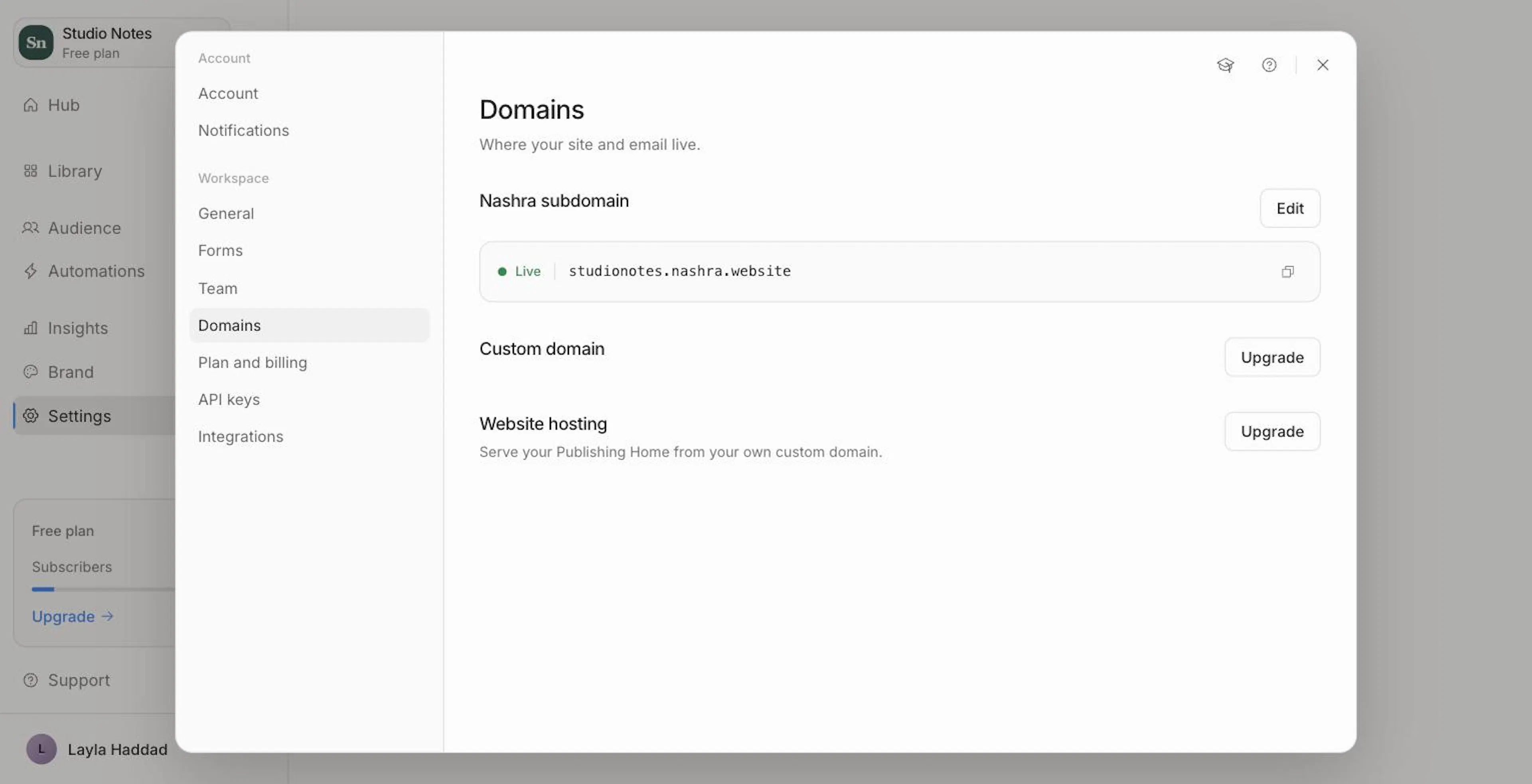
Settings → Domains is where your site and email live. It has up to four sections:
- Nashra subdomain — your free
yourname.nashra.websiteaddress. - Custom domain — connect a domain you own and verify its DNS records.
- Website hosting — shown only when your plan doesn't include hosting your site on your own domain.
- Sending health — shown only when your bounce or complaint rate needs attention.
A custom domain does both jobs at once: the domain you add is the one your emails send from and, on Publisher, the one your site is hosted on. There's no separate "website domain" to connect.
This page covers the Domains pane as a whole. For a record-by-record walkthrough of adding the DNS records, and for choosing your "from" address, see Sending Domain — it's also the Setup guide linked from the pane.
Your Nashra subdomain
Every workspace gets a free address at yourname.nashra.website — the home of your Publishing Home, landing pages, the Hub, and resources, on every plan. Click Edit to change it: lowercase letters, numbers, and hyphens, 3–56 characters.
Renaming is safe. Your old address keeps working, so links in a bio, a printed QR code, or an old shared post still land on your site, and its sign-up forms still work. An address you've retired stays yours — no other workspace can claim it.
Adding a custom domain
Custom domains need a paid plan — Newsletter for sending email from your domain, Publisher to also host your site on it. On Free, the Custom domain section shows an Upgrade button instead. Each workspace connects one domain, even on Publisher; multiple domains are an Enterprise feature.
Open Settings → Domains
Under Custom domain, type the domain you want to connect — yourdomain.com or blog.yourdomain.com — and click Add domain.
Root or subdomain is automatic
Nashra reads what you typed. A bare domain is your root, and a leading www. is dropped for you. Anything with a prefix is a subdomain. Country endings such as .com.sa or .co.uk count as part of the root, so brand.com.sa is a root domain and blog.brand.com.sa is a subdomain. A subdomain is one level deep: blog.yourdomain.com works, a.blog.yourdomain.com doesn't. There's no mode to choose.
Add the DNS records
Add each record shown to your domain's DNS. See DNS records below, or follow the step-by-step Sending Domain guide.
Verify
Click Verify DNS records, or just wait — while the page is open, Nashra checks every 30 seconds and records turn green as they land. DNS changes can take up to 48 hours.
A few names can't be used as the subdomain because they clash with email infrastructure: mg, mail, email, smtp, imap, pop, mx, webhook, and webhooks. A domain that's already connected to another Nashra workspace can't be added again.
DNS records
Until the domain is fully verified, Nashra shows its records in groups, by what each one enables:
| Group | Records | What it's for |
|---|---|---|
| Domain verification | A TXT record holding your DKIM signing key | Proves you own the domain and signs your email |
| Email sending | A TXT record (SPF) and a CNAME for click and open tracking | Authorizes Nashra to send for you, and powers tracking |
| Website | An A record at @ for a root domain, or a CNAME at your subdomain. Sometimes a TXT record to confirm ownership. For a root domain, an optional www CNAME that redirects www to your root. | Hosting your site — shown only on Publisher |
| DMARC | Two TXT records | Recommended, not required |
The banner above the records counts progress — "3 of 4 verified". DMARC and the optional www record don't count toward it.
Hosts are written for your DNS panel
Most DNS panels add your domain to the Host field for you. So Nashra shows short hosts — mg, @, www — ready to paste exactly as shown. Pasting a full name like mg.yourdomain.com into those panels would create mg.yourdomain.com.yourdomain.com, which never verifies.
If you're editing a zone file, or your panel asks for complete names, click Show full hostnames. Click Show short hosts to switch back.
Click any host or value to copy it. Long values are shortened in the middle on screen, but copying always gets the full value.
Record statuses
Nashra checks each record directly against your domain's own nameservers, not a cached copy, so a status tells you what's in your DNS right now — and why a record isn't verifying, not just that it isn't.
| Status | What it means | What to do |
|---|---|---|
| Verified | The record is in place | Nothing |
| Not found or Pending | Nothing is at this name yet | Normal while DNS propagates. If it lasts, check the record was saved. |
| Wrong name | The value is right, but it sits one level too deep — usually because your panel added your domain to a host that already included it | Change the Host field to the short host shown |
| Wrong value | A record exists at this name, but its value doesn't match | Replace it with the value shown |
| Duplicate | There are two SPF or two DMARC records at the same name. Inboxes ignore these entirely when duplicated. | Merge SPF records into one; delete all but one DMARC record |
| Failed | A record was found, but it doesn't check out | Compare it with the value shown, character by character |
When there's something you can fix, a We found the problem banner lists each affected record and the exact change to make.
Help from your DNS provider
Nashra detects who runs your domain's DNS and shows it under Provider. The setup banner links straight to that provider's DNS settings, and How to add this in your provider expands step-by-step instructions, with an Open button. Supported: Cloudflare, Namecheap, GoDaddy, Porkbun, AWS Route 53, Google Domains, Squarespace, Vercel, Name.com, Hover, DNSimple, and Gandi.
On Cloudflare, set each record's Proxy status to DNS only (grey cloud). Proxied records don't verify.
The domain's menu
Open the ⋮ menu next to your domain:
- Auto-configure via your provider — if your DNS provider supports automatic setup, approve the email records in one click. When you come back, Nashra checks more often for the next two minutes.
- Forward records — email the DNS setup to whoever manages your domain, like IT or an agency. Limited to 3 sends per 10 minutes.
- Setup guide — opens the Sending Domain walkthrough.
- Remove domain — see Removing a domain.
The first three appear only until the domain is fully verified.
Status and timeline
The domain card shows when it was Created, its Status (Pending or Verified), your DNS Provider, and its Website — your live address, Connecting…, Failed, or Email only on plans without website hosting.
Below it, a timeline tracks each milestone: Domain added → Email verified → Website live. Once everything is in place you'll see "Domain verified: Your emails and website are live on your own domain."
If the website records don't connect, a Website connection failed banner asks you to check them against your DNS provider exactly, then click Verify DNS records. Your site's HTTPS certificate is handled for you once the website records verify.
Website hosting
Serving your Publishing Home, Hub, and pages from your own domain needs Publisher. On Newsletter, your domain works for email only, and Settings → Domains shows a Website hosting section with an Upgrade button instead of the website records. See Plans & Billing.
Email tracking and its certificate
Once the domain verifies, an Email tracking switch appears — "Track opens and clicks." It turns on automatically the first time the domain verifies.
Tracked links go through a tracking address on your domain, and that address needs its own secure certificate. Nashra requests it for you. If something needs attention, you'll see one of:
- Generating secure certificate — this usually takes a few minutes. The status updates on its own.
- Add the CNAME for the tracking host to finish SSL. Add the tracking record, then click Try again.
- SSL certificate error. Click Try again.
- SSL certificate expired. Click Renew.
- Secure certificate not issued yet. Click Try again.
A domain can verify for sending before its tracking record is in place. If that happens, a Tracking record stays on the page after verification — "Still missing — click and open tracking, and its SSL certificate, need this record." Add it and click Check again.
Sending health
A Sending health section appears only when something needs attention:
- Your sending needs attention — bounces or complaints are higher than usual.
- Sending is paused — too many bounces or complaints in the last 30 days.
It shows your Bounce rate (keep it under 2%) and Spam complaints (keep them under 0.08%), with a Manage subscribers button. Clean your list to resume sending. See Insights.
If your plan lapses
Your custom domain follows your plan, not the other way round:
- Website — when your plan no longer includes website hosting, visits to your custom domain redirect to your
yourname.nashra.websiteaddress straight away. - Email — when your plan no longer includes a custom sending domain, Nashra moves everything that sends from it back to the shared sending domain within about an hour: your default sender, each teammate's sender, the double opt-in sender, unsent campaigns, and live automation emails. Nothing is deleted.
Upgrade or reactivate, and your site and senders move back to your domain straight away. Your cancellation email spells this out if you have a custom domain.
Removing a domain
Open the domain's ⋮ menu and choose Remove domain, then confirm. Your website and emails stop working on that domain, and your site answers on your yourname.nashra.website address again. Before your next send, switch any sender still using the removed domain to another one — see Sending Domain.