
The Editor
How to write a post in the Nashra editor: the / menu and Blocks rail, every block (quote, table, code, video, podcast, button, subscribe form), formatting and block shortcuts, pasting links and Markdown, images and alt text, link previews, emoji, @ mentions of other Nashra publishers (and who can be mentioned), per-block text direction for Arabic and other RTL languages, auto-save, Version history (restoring an earlier draft), and what happens when the same post is edited in two places.
A calm place to write
The Nashra editor is a block-based editor built for focus. Every paragraph, heading, image, or embed is a block you can rearrange, transform, or duplicate. Everything you need is one keystroke away — and out of sight when you don't.
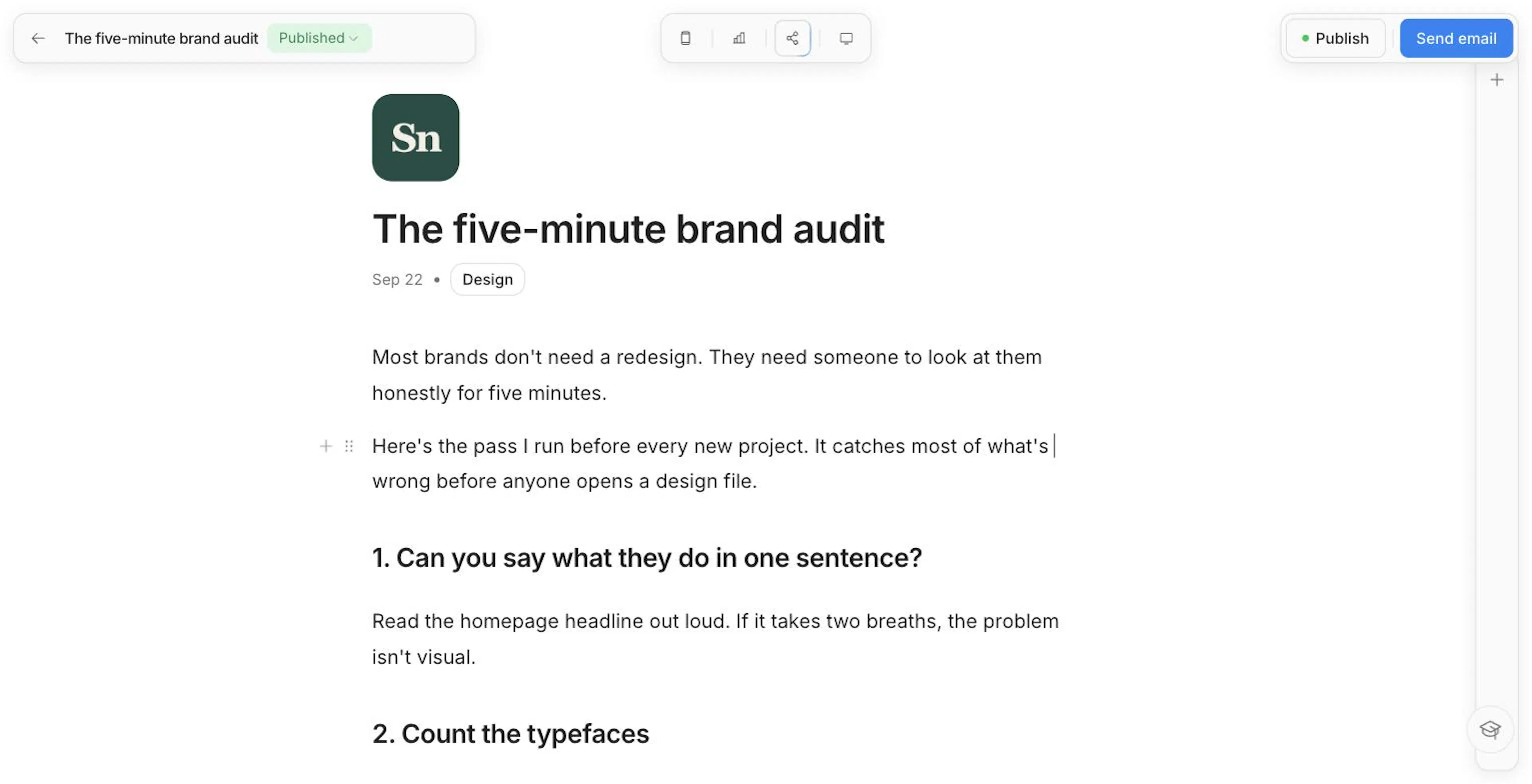
Your post's title sits above the body in its own field, with its category just below. An empty line reads Write, or type / for blocks.
Adding blocks
There are three ways to add a block. They all offer the same list.
- The / menu — Type / on any line, search by name, and press Enter. With nothing typed yet, a Recently used group at the top shows the last three blocks you inserted this way.
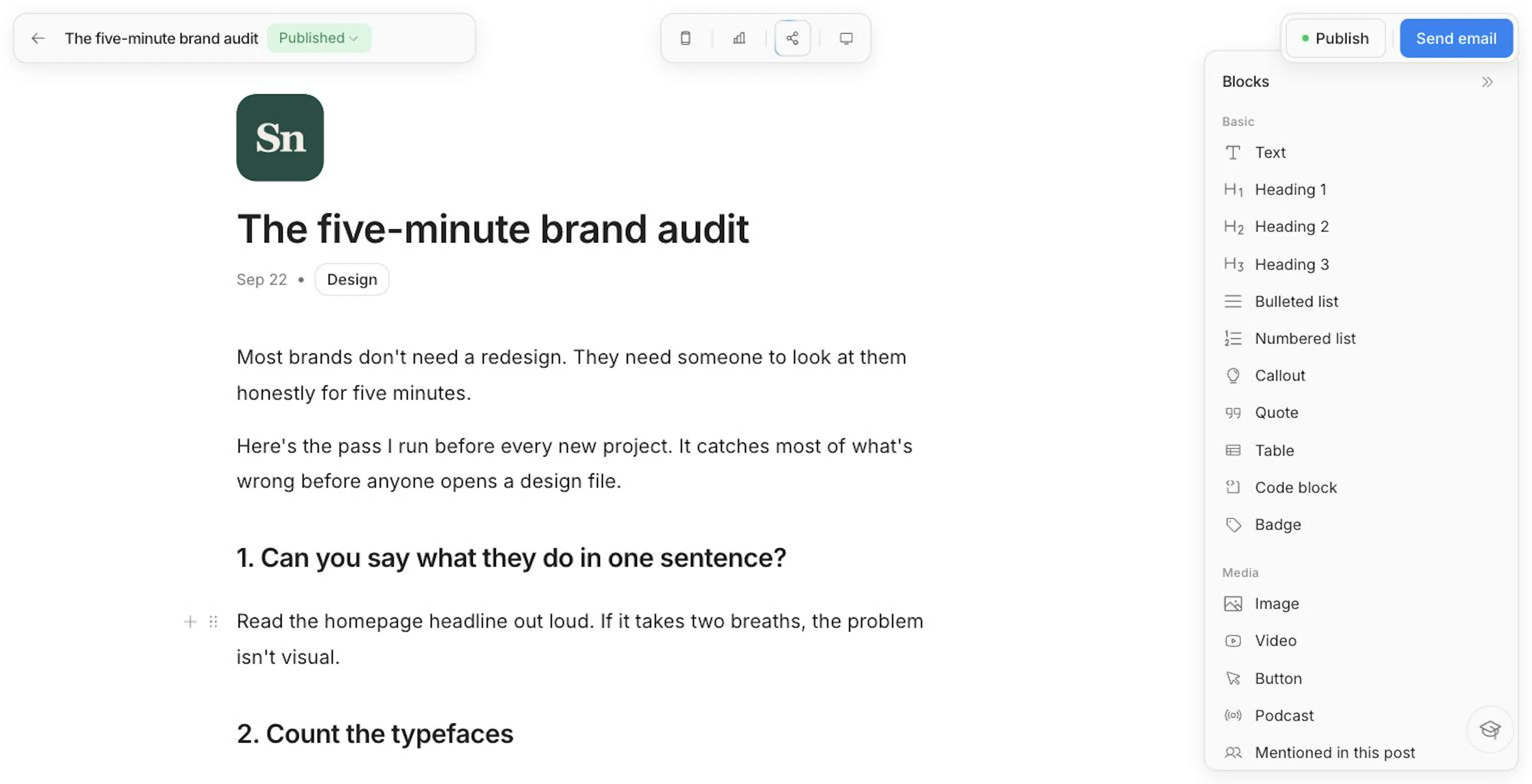
- The Blocks rail — A panel on the right edge of the editor. Click a block to insert it at your cursor, or drag it to exactly where you want it.
- The + button — Hover a block to reveal + beside it. Click to add a block below, or Option/Alt-click to add one above.
The rail opens on your first post so you know it's there, then starts collapsed on every post after. Open or collapse it yourself and that choice sticks.
The / menu searches in English and Arabic, whatever language your dashboard is in. Type callout or ملاحظة and you'll find the same block.
| Group | Blocks |
|---|---|
| Basic | Text, Heading 1, Heading 2, Heading 3, Bulleted list, Numbered list, Callout, Quote, Table, Code block, Badge |
| Media | Image, Video, Button, Podcast, Mentioned in this post, Subscribe form |
| Layout | Separator, Columns |
Moving and changing blocks
Hover a block to reveal its handle (⋮⋮) next to the +.
- Drag the handle to move the block. A line shows where it will land.
- Click the handle, or right-click the block, to open the block menu: Turn into, Duplicate, and Delete. Images and embeds offer Replace, Duplicate, and Delete.
Turn into switches a block between Text, Heading 1, Heading 2, Heading 3, Bulleted list, Numbered list, Quote, and Callout. Your text and formatting come along.
To change several blocks at once, select them first — press Esc to select the block you're in, then Shift + ↑ or ↓ to extend. Clicking the handle of any selected block keeps the whole selection, so Turn into, Duplicate, and Delete apply to all of them.
Block shortcuts
These work from your cursor or on selected blocks.
| Action | Shortcut |
|---|---|
| Select the current block | Esc |
| Extend the selection | Shift + ↑ / ↓ |
| Move block(s) up or down | Ctrl/Cmd + Shift + ↑ / ↓ |
| Open the block menu | Ctrl/Cmd + / |
| Duplicate selected blocks | Ctrl/Cmd + D |
| Delete selected blocks | Backspace or Delete |
| Go back to typing in a selected block | Enter |
Formatting text
Select text to reveal the floating toolbar: Turn into, bold, italic, underline, strikethrough, text color, background color, alignment (left, center, right), and link. Or use the keyboard:
| Format | Shortcut |
|---|---|
| Bold | Ctrl/Cmd + B |
| Italic | Ctrl/Cmd + I |
| Underline | Ctrl/Cmd + U |
| Strikethrough | Ctrl/Cmd + Shift + X |
| Inline code | Ctrl/Cmd + E |
| Link | Ctrl/Cmd + K |
| Heading 1, 2, 3 | Ctrl/Cmd + Alt/Option + 1, 2, 3 |
| Quote | Ctrl/Cmd + Shift + . (period) |
| Code block | Ctrl/Cmd + Alt/Option + 8 |
| Superscript / Subscript | Ctrl/Cmd + . / Ctrl/Cmd + , |
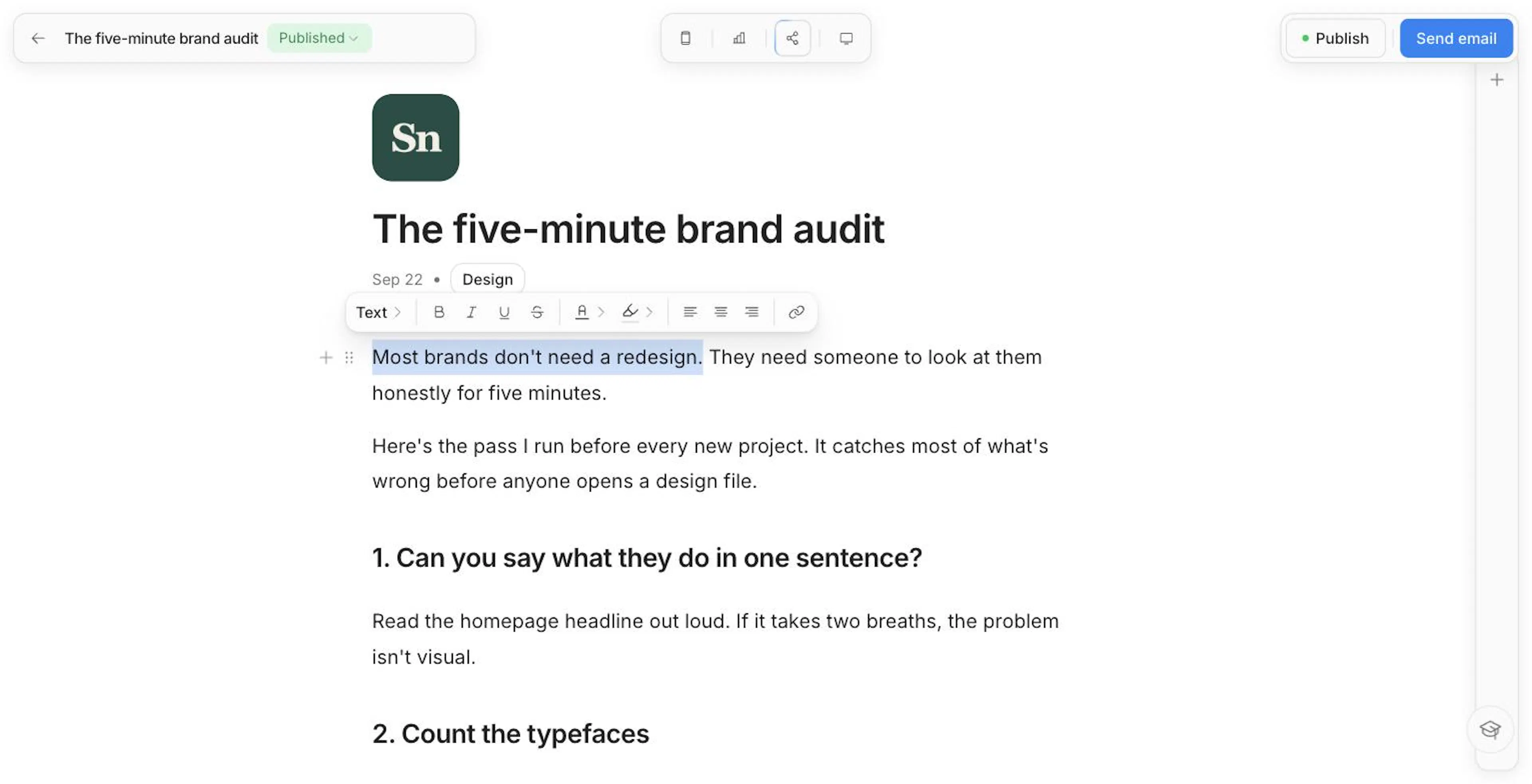
Markdown shortcuts work as you type: # , ## , and ### for headings, - or 1. for lists, > for a quote, three backticks for a code block, and --- for a separator. Wrap words in **, *, ~~, or backticks for bold, italic, strikethrough, or code. The editor also tidies punctuation as you go — -- becomes an em dash, -> an arrow, and straight quotes turn curly.
Callouts, quotes, tables, and code
- Callout — A muted box with an emoji icon (💡 by default). Click the icon to change it. Any text block can become one with Turn into → Callout.
- Quote — In the / menu and the rail, or type
>at the start of a line. - Table — A simple grid. Add rows and columns from the controls on its edges.
- Code block — Pick a language from the block's picker for syntax highlighting in the editor. Code always reads left to right, and sends in email as a dark, monospaced block that keeps its line breaks.
Emoji
Type : after a space or at the start of a line to open the emoji menu. It opens straight away with your recent emoji and a category bar, and narrows as you type. Search works in English and Arabic — heart and قلب both find ❤️. A colon inside a word or a time like 3:30 never opens it.
Links
Press Ctrl/Cmd + K, or click the link button in the toolbar. One field does both jobs: Paste a link or search your pages. As you type, it lists your own published posts, landing pages, and resources — pick one, or press Enter to use what you typed. Arabic titles match with or without harakat.
Hover any link to preview where it goes: the page's share image, title, description, and site. From the same card you can Edit link, Open link, or Remove link. Editing lets you change both the address and the link's text.
Pasting
Pasting a link
What a pasted URL becomes depends on where you paste it:
| Where you paste | What you get |
|---|---|
| Over selected words | Those words become a link — they're never replaced |
| On an empty line | The richest block for that link: a video for YouTube or Loom, a podcast card for Spotify or Apple Podcasts |
| Anywhere else | A plain link, right where you pasted it |
Pasting a Markdown draft
Drafted in a notes app, a .md file, or an AI chat? Paste the whole thing. Headings, lists, bold, links, quotes, tables, code, and separators arrive as real blocks, and each line stays on its own line. If the post has no title yet, the first # Heading becomes the title.
Plain prose still pastes as prose — Nashra only converts text that clearly uses Markdown.
Pasting from other apps
Content from Google Docs, Word, or a web page keeps its structure and formatting, minus the source's fonts. Images embedded in the copied content are uploaded to Nashra automatically so they show up in email too.
Images
Inserting an image opens the same image dialog you use everywhere in Nashra — landing pages, resources, and thumbnails included. It has up to four tabs:
- Upload — Drop an image or click to browse. Pick several at once and each becomes its own image block.
- Unsplash and Lummi — Search stock photos and AI-generated stock. These appear only when they're available.
- Link — Paste the address of an image already online.
You can also drag images straight into the editor or paste them from your clipboard. Images are optimized and served from Nashra's CDN, and each keeps its original aspect ratio until you change it.
JPG, PNG, GIF, or WebP, up to 5 MB per image. The Upload tab shows the limit, and a file that's too large is turned away before it uploads, with its actual size — so you're never left wondering why an upload failed.
Select an image to reach its toolbar:
| Control | What it does |
|---|---|
| Align | Place the image left, center, or right |
| Link | Make the image clickable |
| Caption | Add a caption below the image |
| Alt | Describe the image for readers who can't see it |
| Replace | Swap in a different image |
| Ratio | Original, 1:1, 4:3, 16:9, 21:9, or 3:1 |
| Focal point | Set which part of the image stays in view when it's cropped |
| Delete | Remove the image (with an Undo) |
Alt text travels with the image to your published post and to the email, where screen readers and blocked-image views use it.
Video, podcasts, and buttons
Video
Add a Video block and paste a YouTube or Loom link — or just paste the link on an empty line. Videos are embedded from YouTube or Loom; there's no video upload in posts.
Podcast
Paste a link to an episode from Spotify, YouTube, or Apple Podcasts into a Podcast block, and Nashra resolves it into a read-only card with a Listen on link to the episode's provider (for example, Listen on Spotify). Pasting a Spotify or Apple Podcasts link on an empty line creates the card for you. (A YouTube link pasted on its own becomes a video — use the Podcast block when you want the card.)
Apple Podcasts gives the richest card — title, show, hi-res art, and duration; YouTube shows title, channel, and thumbnail; Spotify shows title and art only. There's no in-app player, and nothing is hosted on Nashra — the card just links out. Metadata is fetched once when you add the link and stays frozen after that.
Buttons
A Button block is a call to action. Select it to set its link, switch between full width and fit-to-content, or between fill and outline.
A button with no link doesn't pretend to be one — it publishes and sends as plain text. The Send email dialog warns you before sending, naming each button that has no link.
Subscribe form in posts
Add a Subscribe form block to let readers join your list without leaving the post. Select it to add a title, collect names, ask for a WhatsApp number (readers can skip it), apply tags on subscribe, or edit the button label.
The form appears on your published post only — it's left out of the email, since your email readers are already subscribed. People who join through it are recorded as subscribing from that post.
Mentioning other publishers
Credit another creator on Nashra the way you would on social media. Type @ followed by at least three letters of their name, then pick them from the list. Arabic names match however they're spelled — with or without hamza, tatweel, or ta marbuta.
- In the text, the mention becomes a quiet @Name chip that links to their Hub.
- At the end of the post, your first mention adds a Mentioned in this post section with a card for each publisher you cite — their name, tagline, and picture. New mentions add cards automatically.
You stay in control of the section. Edit its heading, remove a single card (it won't come back), or delete the whole block. To bring a deleted section back, insert Mentioned in this post from the / menu.
In email, each chip becomes an underlined link and the cards become one row per publisher, so they display cleanly in every inbox.
What the other publisher sees
When you publish the post, each publisher you mention gets one email saying your workspace mentioned them, with a link to read the post. It's sent once per post, no matter how many times you update it, and never for a draft. Adding a mention while editing a live post notifies them when you publish the update. Each time you publish, the cards refresh with the publisher's current name, tagline, picture, and Hub address.
Only workspaces with a published Hub can be mentioned, and never your own. Mentions work the same way on landing pages.
Opting out of mentions
There's no setting for this. Only a published Hub can be mentioned, and it's already public. If you'd rather not appear in other publishers' @ list, contact Nashra support and they'll take you out of it. Cards already published in other people's posts stay as they are — they're part of what that author wrote.
Columns
A Columns block lays content side by side. Its floating toolbar offers four layout presets — Two columns (50/50), Three columns, Wide left (66/34), and Wide right (34/66) — plus vertical alignment (top, center, bottom), Dissolve layout (keeps the content, removes the columns), and Remove layout (deletes the columns and everything in them).
Writing in any language
Nashra works in any language, with first-class right-to-left (RTL) support.
- Each block sets its own direction. A block that's mostly Arabic (or another RTL script) reads right to left; a mostly English block reads left to right. So an Arabic post can quote an English paragraph, and each lines up correctly with nothing to toggle.
- Empty blocks follow your site's direction, which comes from your workspace language in Settings → General → Language & region.
- Mixed scripts in one line are handled automatically.
- The same rule applies everywhere — the editor, the sent email, and your published post always agree.
When you paste into an empty post, Nashra checks the language. If it doesn't match your workspace setting, you'll be offered a one-click switch (for example, to Arabic and RTL). Accepting it changes your workspace language, not just this post.
If your dashboard is in Arabic, the editor is too — menus, toolbars, and hints. Block and emoji search still accept English.
Auto-save
The editor saves as you type, with Saving… and Saved in the top bar. There's no save button.
Leaving never costs you your last words. Whether you click back to your Library, close the tab, switch apps, or lock your phone, anything still waiting to save is saved first — even on a brand-new post you started seconds ago.
Version history
Every time something replaces your draft, Nashra keeps the draft it replaced. Click the clock icon, Version history, at the start of the tools in the top bar to see them, newest first. Each one shows when it was saved, who saved it, and why it was kept:
| Label | What it is |
|---|---|
| Autosaved | Your draft as you wrote it. While you type, Nashra keeps one of these every 10 minutes or so |
| Before AI edit | The draft just before an AI edit replaced it |
| Before restore | The draft just before you restored an earlier version |
| Unsaved copy | Your copy from a save that was turned away because the post had changed elsewhere |
To go back, click Restore on a version, then Confirm. The version becomes your draft, and the draft it replaced joins the list, so a restore can be undone the same way. Restoring only changes the draft: a published post stays live as it was until you publish again. Nashra keeps a post's last 50 versions.
Editing in two places
If the post changes somewhere else while it's open (another tab or device, a teammate, or an AI edit), the editor picks it up within about ten seconds, or as soon as you come back to the tab.
- Nothing unsaved here? The newer version appears in place, with a note saying Updated from another window, Edited by AI, or An earlier version was restored. If the note offers Undo, click it to go back.
- Typing that hasn't saved yet? Nashra doesn't save over the newer version. You'll see This post changed while you were writing, with two choices: Keep mine or Show latest. Nothing is lost either way. The version you don't keep stays in Version history.
Title, category, and publish settings
The title and category live at the top of the editor. Everything about how the post goes live — its URL slug, thumbnail, publish date, and visibility — lives in the Publish popover. See Publishing Posts.
AI helpers
A few small AI tools sit next to the editor:
- Regenerate slug with AI — In the Publish popover, generate a clean URL slug from your title in one click.
- Suggest a subject — In the Send email dialog, click the sparkle in the Subject field to have Nashra write a subject line for this post.
- Draft with AI — In Share on social media, it writes a caption from your post, plus the slides of an Instagram carousel. See Sharing on social media.
For broader AI features (the AI Strategist, in-app assistant), see Nashra AI.
Writing tips
- One clear takeaway — What should the reader remember or do?
- Strong subject line — Clear and specific. The subject decides whether subscribers open.
- Short paragraphs — Two or three sentences each.
- Use headings — Help readers scan and re-find passages.
- Describe your images — Alt text helps readers using screen readers, and anyone whose email hides images.