Brand & Identity
Where your look and workspace details live in Nashra — the Brand page (logo, brand color and automatic text contrast, heading and body fonts, custom font uploads and the malformed-character warning, tone of voice, the brand description your public site uses, and the writing style every AI draft follows) and Settings → General (workspace name, category, language and timezone, footer, social card). Also covers RTL, dashboard vs content language, and the Nashra badge.
Two places for your identity
Your workspace's identity is split across two screens:
| Where | What it's for | What you control |
|---|---|---|
Brand — its own sidebar item, /brand | What readers see | Logo, Colors, Typography, Tone of voice |
| Settings → General | The details behind the workspace | Workspace name, Category, Language & region, Footer, Social card |
Changing the brand or workspace details needs Full access or the workspace owner. See Team & Roles.
The Brand page
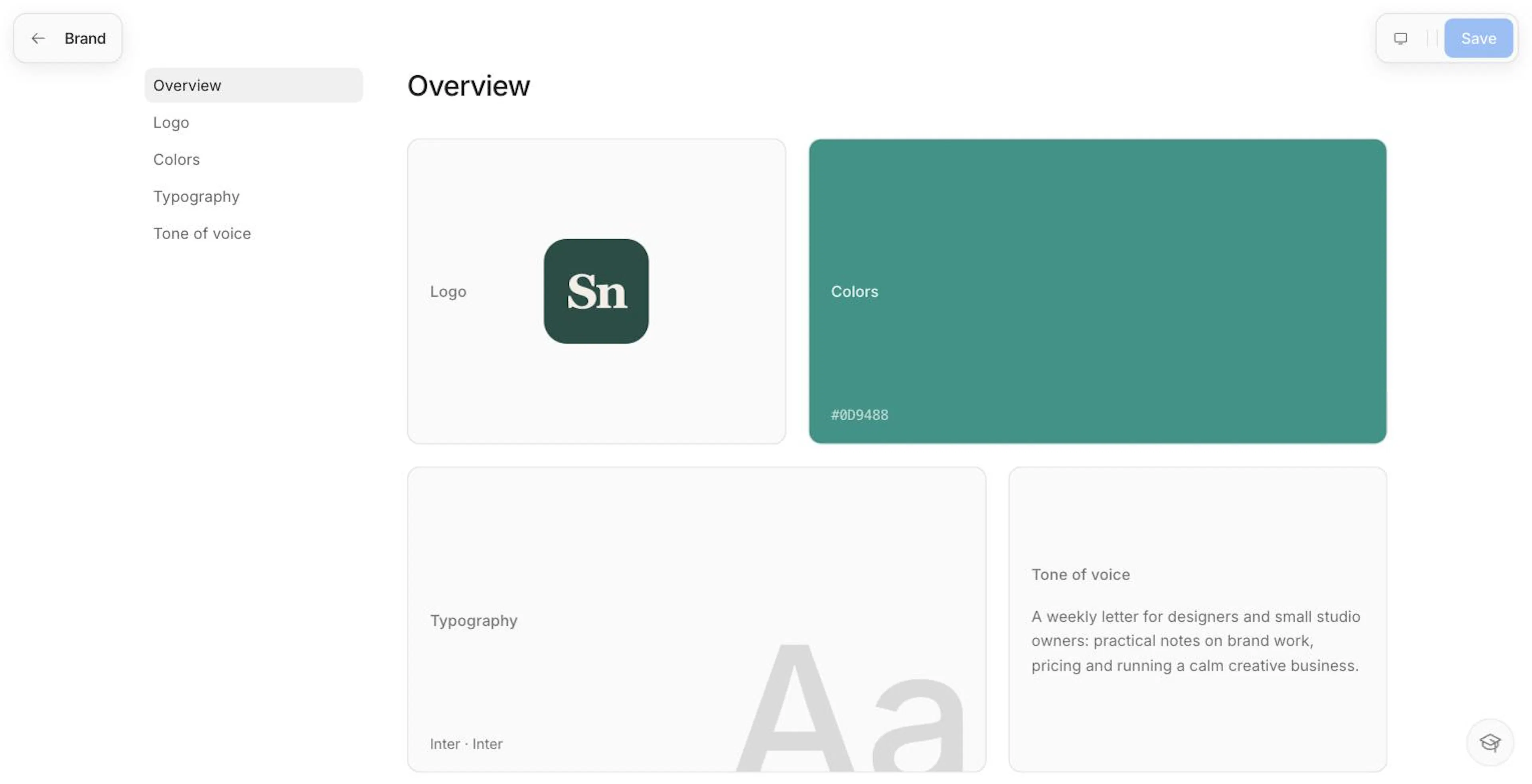
Click Brand in the sidebar. It opens as a full page with five sections: Overview, Logo, Colors, Typography, and Tone of voice. Edit what you like, then click Save at the top — or Cancel to throw the changes away.
Overview
Live preview tiles for your logo, brand color, fonts, and voice. Click a tile to jump to that section.
Logo
Drop a logo onto the upload area, or click Upload — PNG, JPG, or SVG, up to 5 MB. Photos and other raster images go through a crop step first: near-square marks snap to a clean square, and wide wordmarks keep their shape. SVGs skip the crop and stay sharp at any size. Click Remove to go back to your initial.
Your logo is also your Hub's picture. The Hub no longer has its own avatar, so what you set here is what readers see on your Hub. See Hub.
Colors
Pick a brand color, or type a hex code. It's used across your pages, forms, emails, and buttons.
You don't have to worry about whether text on your color is readable. Nashra uses one rule everywhere:
- Text color is picked for you. Buttons and other controls filled with your color get white text, unless the color is genuinely light — then they get dark text.
- Weak colors are strengthened where text sits on them. If white text wouldn't be readable on your color, filled buttons use a slightly darker shade of the same hue. Decorative uses keep your color exactly as you picked it.
- Near-white colors stay visible. A very light brand color on a white page gets a thin border, so buttons don't disappear.
Typography
Typography has two slots, Heading and Body, so headings and body text can use different fonts. For each slot, choose:
- A curated font — Latin or Arabic
- Thmanyah Sans, a font Nashra hosts itself
- A font you upload
Open a slot's settings (Weight & features) to fine-tune it: weight, OpenType features such as stylistic sets and ligatures, and the shape controls of variable fonts. A live preview updates as you go, before you save.
Fonts apply to your Hub, posts, landing pages, and resource pages. They're available on every plan.
Custom font limits:
| Limit | Value |
|---|---|
| File formats | WOFF2, WOFF, TTF, OTF |
| Max file size | 2 MB per file |
| Max files per upload | 8 |
| Max faces per workspace | 16 |
Upload several weights of one font together. Files that share a family name are grouped automatically — upload a Regular and a Bold, and both weights become available to that slot. You can rename or remove a family from the font list.
When a font draws a character wrong
Some fonts contain a character that's present but drawn incorrectly — for example, a question mark that's really a copy of a square bracket, so every ? on your page shows up as [. Browsers can't catch this, because the character isn't missing.
Nashra checks every face as you upload it. If it finds a problem, the upload still goes through, but you'll see a warning like "Uploaded — but ? is malformed and will render wrong", and the face is marked Malformed in the font's file list. Upload a corrected version of the font, or choose a different one. Fonts you uploaded before this check existed are checked automatically the next time you open Typography.
Tone of voice
Two fields:
- About your brand — what you publish and who it's for. It guides the AI strategist and the landing-page builder, and it's also the description your public site uses: your pages' search and share descriptions, your RSS feed, and your generated social card.
- Writing style — how your writing should sound. The AI writer follows it in every draft: subject lines, share captions and carousels, the landing-page Agent, and the Strategist's post ideas. Click Start from example: chips — Warm and direct, Expert, no jargon, Playful and brief — to begin from a draft instead of a blank box.
The AI tools also learn from your recent posts. Where those and your Writing style differ, the Writing style wins. See Nashra AI for what they read.
Settings → General
Open Settings → General for the details that describe your workspace rather than its look:
- Workspace name — up to 40 characters.
- Category — see below.
- Language & region — your content language and timezone. These apply to your Hub, emails, and public pages. See Language and RTL.
- Footer — a physical address (required for email in some countries — a PO Box is fine) and up to 5 social links.
- Social card — the 1200×630 image shown when your pages are shared. Upload a JPG, PNG, or WebP, or leave the generated default in place.
- Danger zone — Delete workspace. You'll need to create another workspace first, and type the workspace name to confirm.
Category
A single-select field with 11 options: Content Creation, Coaching & Personal Growth, Consulting, Leadership & Management, Entrepreneurship & Business, Marketing & Sales, Technology & AI, Finance & Investing, Design & Creativity, Health & Wellness, and Education & Training. Type in the picker to search it. In the Arabic dashboard, the options and the search are in Arabic.
Nashra can suggest a category based on what you publish — click Use to accept it, or Dismiss. Category describes your workspace as a whole; it's separate from post categories and subscriber tags.
Language and RTL
Nashra works in any language and is RTL-native. Set your workspace to a right-to-left language and layouts, alignment, and icon mirroring flip across your hosted pages — not just the text direction. If Nashra notices your content is in a different language than your setting, it offers to switch for you.
Two language settings are easy to mix up:
| Dashboard language | Content language | |
|---|---|---|
| What it controls | The Nashra dashboard you work in — menus, buttons, labels | What your workspace publishes in |
| Options | English or العربية (Arabic) | English, Arabic, Spanish, Portuguese, French, German, Chinese (Simplified), Hindi, Japanese, Indonesian |
| Where it's set | Settings → Account → Dashboard language | Settings → General → Language & region |
| Affects | Only what you personally see | Your Hub, emails, and hosted pages |
The dashboard language never changes your content.
Posts and landing pages follow the workspace's content language — there's no separate language or direction switch per post or per page. A landing page takes the workspace language when you create it, and in the post editor each block sets its own direction automatically. See Editor.
The Nashra badge
Free workspaces carry a small "Built by Nashra" badge. On Arabic pages and emails it shows the Arabic wordmark, نَشْرَة, instead of the Latin "Nashra" — it follows your content language, not text direction, so other right-to-left languages still read "Nashra". On the web, the badge is set in Nashra's own typeface; in email it uses system fonts, because mail apps don't load web fonts.
Which plans can remove it, and where:
| Where the badge appears | How to remove it | Plan needed |
|---|---|---|
| Emails | Hidden automatically on paid plans. Free emails always carry it. | Newsletter or Publisher |
| Hub, posts on the web, landing pages | Removed automatically on Publisher. On the Hub you can still show or hide it with the eye beside the badge in the editor. On Free and Newsletter, a lock shows there instead: "The badge stays on your Hub. Upgrade to Publisher to take it off." | Publisher |
| Images you share from a post | The Nashra badge switch in Share on social media | Publisher |
See Plans & Billing for the full comparison.